 smart
smart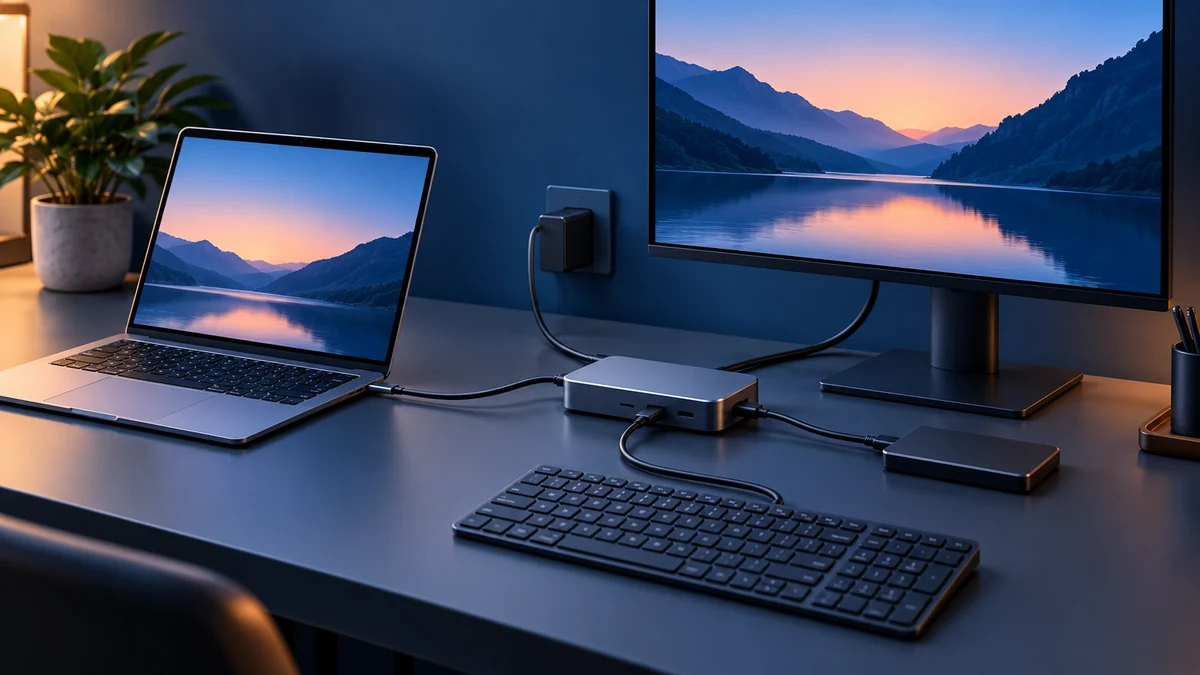
Draw the setup before choosing the laptop
List what must be connected at the same time: monitor resolution and refresh rate, charger, external storage, network, keyboard and any specialist device. Then draw the path from each item to the laptop. This exposes whether one cable is realistic or whether the desk needs several direct connections.
If you are choosing between the current Air sizes, our MacBook Air M4 13-inch versus 15-inch guide handles screen and portability. Here the question is narrower: can the exact configuration drive your desk without relying on an unsupported adapter chain?
USB-C is a shape, not a capability list
Two ports can share the reversible USB-C connector while supporting different data rates, display modes and charging behavior. Read the manufacturer specification for the exact model and configuration. Look for USB generation or speed, Thunderbolt version, DisplayPort support and USB Power Delivery rather than assuming every USB-C port does everything.
The distinction matters because every link can become the limit. A fast Thunderbolt dock connected with a charge-only cable will not become a display connection. A USB-C display adapter must support the video protocol the laptop exposes. Labels on the dock, cable and power supply matter as much as the socket shape.
Exact catalog example: MacBook Air M4 (2025)
In this configuration, the 13-inch MacBook Air M4 in our catalog has two Thunderbolt 4 ports, MagSafe 3 and a 3.5 mm headphone jack. Apple says those Thunderbolt 4 ports support charging, DisplayPort, Thunderbolt 4 and USB4 at up to 40 Gb/s. The listed 15-inch M4 configuration has the same port types; that does not make their batteries, displays or graphics configurations identical.
Apple advertises support for the built-in display plus up to two external displays on M4 MacBook Air, subject to the stated resolution and refresh combinations. Its current specification lists two displays up to 6K at 60 Hz or 4K at 144 Hz, or one display up to 8K at 60 Hz, 5K at 120 Hz or 4K at 240 Hz. These are ceilings under stated combinations, not a promise that every monitor, cable or dock will deliver them.
Budget bandwidth, displays and power separately
| Path to verify | What must match |
|---|---|
| Monitor | Input, cable/adapter, resolution, refresh rate and whether you need HDR or variable refresh. |
| Dock to laptop | Host protocol, supported OS, display method and included host cable. |
| Charging | USB-PD support and the power actually delivered to the laptop after dock overhead. |
| Storage and network | Required sustained speed, port sharing and whether other devices reduce available bandwidth. |
A dock specification should answer three different questions. First, which host connection and operating systems does it require? Second, how many displays and which resolution/refresh combinations can it output from this laptop? Third, how much power reaches the computer after the dock reserves power for itself and attached devices?
Do not count ports only. A dock with several video sockets does not override the laptop’s display limit, and mirrored outputs are not the same as separate extended desktops. For charging, Apple says a Mac that charges by USB-C can use a compliant USB Power Delivery source, but recommends at least the wattage of the adapter specified for the computer for the best experience. Check the delivered laptop wattage, not merely the dock power supply’s headline number.
Test the proposed chain on paper
Write the exact model number beside every component, including the monitor and dock revision. Use the manufacturer manuals to verify the host port, cable requirements and supported display table. If a seller page says only “USB-C compatible,” treat that as incomplete until the required protocol is named.
Browse the laptop catalog after the desk requirements are fixed. Keep the existing monitor or dock when its documented inputs and power delivery already fit the new machine; replacing accessories by default adds cost without solving a defined limitation.
Conditional verdict: buy for the complete path
Use the laptop comparator to shortlist exact configurations, then return to the manufacturer’s port and display documentation. Choose a simpler adapter when you need one display and a few low-bandwidth accessories. Choose a documented Thunderbolt or USB4 dock when one-cable desk use, faster storage or multiple supported displays justify it.
This is a source-based planning guide, not a dock benchmark. It does not measure transfer speed, charging rate, sleep/wake reliability or monitor behavior. Those can depend on firmware, operating-system updates and the exact cable chain. Buy only after the complete path is documented, and keep a return option for a setup you cannot test beforehand.